We don't do this because we have to! We do this because we love it :-)


Gaming PC Motherboard Replacement Guide: AMD Ryzen Build
Gaming PC Motherboard Replacement Guide: AMD Ryzen Build
Kristian Toić-TOTALPC
3/28/202616 min read
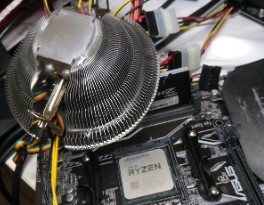
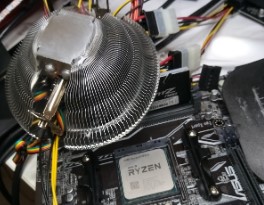
https://www.youtube.com/watch?v=kQzW8A-Lxio
This transcript provides a detailed walkthrough of replacing a motherboard in a high-performance gaming PC featuring an AMD Ryzen processor. Kristian Toić meticulously demonstrates essential pre-service checks, including verifying component compatibility and ensuring Bitlocker encryption is disabled to allow system access. The guide covers the physical installation process, emphasizing the importance of applying new thermal paste, managing cable routing, and removing protective plastic films. After assembling the hardware, the video confirms the success of the upgrade by booting into Windows 11 and Ubuntu Studio. Throughout the demonstration, the expert shares professional tips on hardware maintenance and cleaning to ensure optimal system longevity.
What preparation steps are required before replacing a motherboard?
Based on the sources provided, the preparation steps required before replacing a motherboard involve several critical technical and safety checks:
Verify System Functionality and Backup: Before starting, power on the existing system to ensure it is currently working. You must confirm that a backup of all data has been made to external disks.
Disable Encryption: It is essential to check if Bitlocker encryption is enabled. If it is, the encryption must be removed or decrypted before servicing, as the computer cannot be properly serviced while Bitlocker is active.
Check Physical Compatibility: Physically place the new motherboard near or inside the case to ensure it fits. If the board is too large for the chassis, the replacement cannot proceed.
Component Cleaning: Clean the case and existing components thoroughly. This includes removing dust from the CPU area, fans, and dust filters. The graphics card should also be removed and cleaned separately.
Prepare the New Motherboard: Carefully remove all protective plastic films from the new motherboard and components. Leaving these on can cause a burning smell or damage as the system heats up.
CPU and Thermal Paste Preparation: When moving the processor to the new board, the CPU must be completely cleaned of old residue before applying new thermal paste. The sources recommend using the "zero insertion force" (ZIF) method for installation and applying paste in a cross pattern for square CPUs.
Pre-Installation "Naked" Test: Before mounting the new motherboard into the case, perform a test outside of the chassis. Connect the CPU, RAM, graphics card, and power supply to see if the system reaches the BIOS screen. This ensures the components are addressed correctly (which may take 30 seconds to 2 minutes) and allows you to reset the fTPM if prompted.
Plan Cable Routing: Because different motherboards have different connector layouts (such as SATA and power header positions), you should plan to "re-route" and re-manage the cables within the case before final installation.
How do I perform the recommended pre-installation naked test?
To perform the recommended pre-installation "naked" test, you should set up the motherboard outside of the computer case on a flat surface to ensure the core components are working correctly before final assembly.
Follow these steps based on the sources:
Install Core Components: Place the CPU, RAM, and graphics card onto the new motherboard. Ensure the CPU is cleaned and fresh thermal paste is applied in a cross pattern before this stage.
Connect Power: Use a power supply to connect the main motherboard power, the CPU power (8-pin), and the graphics card power.
Connect Peripherals: Plug in a monitor via HDMI, along with a keyboard and mouse (or their wireless receiver).
Exclude Storage: Do not connect any hard drives or SSDs for this test; the goal is simply to reach the BIOS.
Powering On: Switch the power supply to the "on" position. Since the motherboard is not yet in the case, you start it by short-circuiting the power button pins on the motherboard headers.
Monitor the Boot Process: Wait for the system to address the CPU. This process usually takes between 30 seconds and 2 minutes.
Handle BIOS Prompts: Once the BIOS screen appears, you may see a message stating "New CPU installed." If prompted, press the required key (such as 'Y') to reset the fTPM.
Verify and Shut Down: Once you have confirmed a signal and reached the BIOS, the test is successful. You can then shut down the system, remove the graphics card, and proceed with mounting the motherboard into the case.
Performing this test ensures that if there is a hardware defect, you identify it before spending time on cable management and final installation.
How do I short-circuit the power button pins?
To short-circuit the power button pins during a "naked test," follow these steps based on the sources:
Locate the Pins: Identify the power button header pins on the motherboard. These are the pins where the case's power button cable would normally connect.
Prepare Power: Ensure the main motherboard power and CPU power are connected, and switch the power supply to the "on" position (the "1" setting).
Create the Short Circuit: Use a tool to "poke" or touch the power button pins momentarily. This brief contact mimics the signal sent by a physical button, triggering the motherboard to start.
Observe the Boot: If done correctly, the motherboard should light up (e.g., RGB LEDs or status lights), and the CPU fan or other components will begin to run as the system starts to address the hardware.
This technique is used specifically when the motherboard is outside of the chassis and does not yet have access to the case's built-in power switch.
How do I identify the power button header pins?
To identify the power button header pins on your motherboard, you should look for the specific cluster of pins typically located in the front panel header section. Based on the sources, here is how you can locate and identify them:
Check the Motherboard Labels: Motherboards usually have small text printed directly on the board near the pins. Look for labels such as "power switch," "power button," or "PW SW".
Identify the Connector Cluster: These pins are part of a group that also includes connections for the HDD LED and Power LED. If you are moving a motherboard into a case, you can identify the correct pins by looking at the labels on the small cables coming from the case’s front panel.
Locate the "Power Button Area": During a "naked test" where the motherboard is outside the case, the expert in the source identifies the general "power button area" on the board to perform a short circuit. This is usually found along the bottom or side edges of the motherboard layout.
Use the Case Cables as a Guide: If you are unsure which pins are which, the cables from the computer case are labeled (e.g., "Power Switch"). You can match these labels to the corresponding pins on the motherboard header.
If the labels on the motherboard are difficult to read, the sources suggest that the layout of these connectors can vary between different motherboard models, so you may need to re-route and re-manage cables to reach the specific positions on your new board.
What tool should I use to touch the pins?
Based on the sources, to perform the short circuit on the power button pins, you should use a tool to "poke" (or touch) the specific pins.
While the transcript contains a colloquial or possibly abbreviated term for the tool in hand during the short circuit ("cig"), the expert explicitly mentions using a screwdriver (referred to as a "šrafciger") for other parts of the motherboard installation, such as tightening screws into the backplate. In technical practice, a screwdriver is the standard tool used to momentarily bridge these pins to trigger the power signal.
Safety Note: Ensure you only touch the specific power button header pins to avoid accidentally shorting other components on the board.
What does a successful boot look like in BIOS?
According to the sources, a successful boot during the "naked test" is characterized by the motherboard successfully identifying the hardware and displaying a specific setup screen.
Here is what a successful boot looks like:
Initialization Period: When you first power on the system, the motherboard must "address" the new CPU. This process is not instantaneous and typically takes between 30 seconds and 2 minutes.
Physical Indicators: You will see the motherboard light up (for example, the Gigabyte or Aorus logos may glow) and the CPU fan will begin to spin, indicating the board is receiving power and functioning.
Signal to Monitor: A successful boot will result in a BIOS image appearing on the screen.
Specific BIOS Prompts: Because the motherboard is new or has a different processor, you will likely see a message stating "New CPU installed".
Required Interaction: The screen will often prompt you to press "Y" to reset the fTPM (firmware Trusted Platform Module).
Once you reach this screen and receive a signal on your monitor, the boot is considered successful, and you can proceed with the final installation into the case.
What does the fTPM reset prompt mean?
Based on the sources, the fTPM reset prompt (typically appearing as "New CPU installed Press Y to reset fTPM") is a security-related notification that occurs when the motherboard detects a change in the hardware environment.
Here is what it means and why it appears:
Detection of a "New CPU": Even if you are using your original processor, the new motherboard identifies it as a new installation during the initialization phase. This "addressing" process can take 30 seconds to 2 minutes during the first boot.
Security Reset Requirement: The prompt requires the user to press "Y" to reset the firmware Trusted Platform Module (fTPM). This reset is a necessary step to allow the motherboard and CPU to communicate correctly and proceed to the BIOS or operating system.
Connection to Encryption: This reset is the reason why the sources emphasize disabling Bitlocker encryption before you begin the motherboard replacement. If Bitlocker is active and the fTPM is reset or changed, you may be locked out of your data because the encryption key is often tied to the specific hardware configuration.
In summary, it is a standard part of the setup for a new motherboard that clears old security hardware data to establish a fresh connection with the processor.
What does a firmware reset do to my files?
A firmware reset—specifically the fTPM (firmware Trusted Platform Module) reset prompted by a motherboard change—does not delete your files, but it can make them inaccessible if your drive is encrypted.
According to the sources and technical best practices:
Risk to Encrypted Data: If Bitlocker encryption is enabled on your system, the encryption keys are often tied to the specific hardware's fTPM. Resetting this firmware while encryption is active can lock you out of your data. This is why the sources emphasize that Bitlocker must be removed or disabled before any service or motherboard replacement begins.
Safety Measures: To prevent any potential data loss during the hardware transition, it is required to have a backup of all data on external disks before proceeding with the reset or the installation.
File Persistence: If encryption is not an issue, the reset simply allows the new motherboard to "address" the CPU and establish a new security handshake. After the reset, the system should boot into your existing operating system (like Windows 11 or Ubuntu Studio) with your files and partitions remaining exactly as they were.
In summary, while the reset itself is a hardware security configuration and not a data-wiping command, it acts as a gatekeeper that can prevent you from opening your files if the drive's security settings (Bitlocker) are not managed beforehand.
What happens if I forget to remove the plastic film?
If you forget to remove the protective plastic film from your motherboard or other new components, it can cause several issues once the computer is powered on:
Burning Smell: As the system runs, the components get very hot, which will cause the plastic to emit a smell of burning.
Melting and Burning: Because of the high heat generated by parts like the CPU or graphics card, the plastic film—which is intended only for transport—will eventually burn or melt onto the hardware.
Heat Issues: These foils can interfere with the system's ability to manage heat correctly, as the components are designed to dissipate heat which is then trapped or blocked by the plastic.
The sources emphasize that you must remove all plastic films from the motherboard, graphics card, and any other parts before final assembly to avoid these risks.
What tool should I use to remove cable ties?
To remove cable ties (plastic ties) during a motherboard replacement, you should use diagonal cutters, referred to in the sources as "cvik cange".
According to the sources, these are used to:
Remove existing plastic ties: This is necessary to free the cables so they can be re-positioned or "re-routed" to match the layout of the new motherboard.
Ensure safety: When using the cutters, you must be extremely careful not to cut or nick the cables themselves while removing the ties.
This step is part of the mechanical process of "re-cabling" the case to ensure all connections reach their new positions on the new board.
How do I manage the fTPM prompt during the test?
To manage the fTPM prompt during the pre-installation "naked test," you must interact with the system once it identifies the hardware changes. Based on the sources, follow these steps:
Wait for the Prompt: After powering on the motherboard, wait for the initialization process. It typically takes between 30 seconds and 2 minutes for the motherboard to "address" the CPU before the screen appears.
Identify the Message: You will see a specific screen stating, "New CPU installed" followed by a request to "Press Y to reset fTPM".
Perform the Reset: Press the 'Y' key on your connected keyboard to confirm the reset. The sources advise that you should not touch or change anything else at this stage once the reset is initiated.
Verify Success: Once you have pressed 'Y', the system should proceed to the BIOS screen, confirming that the motherboard and CPU are communicating correctly.
Important Context: This prompt appears because the motherboard detects a hardware change and needs to establish a new security handshake. As noted in our previous conversation, this is the specific reason why you must disable Bitlocker encryption and backup your data before starting the replacement; if Bitlocker is active when you press 'Y' to reset the fTPM, you may be permanently locked out of your files.
What tool should I use to apply thermal paste?
Based on the sources, there is no mention of using a separate spreading tool (like a spatula or card) to apply the thermal paste. Instead, the focus is on the application pattern and the preparation of the surface:
Application Pattern: For a square processor (such as the Ryzen 5 3600), the expert recommends applying the thermal paste in a cross pattern ("križno"), drawing it from one side of the CPU to the other.
Direct Application: The sources mention using MX6 thermal paste, which typically comes in a syringe that allows you to apply the paste directly onto the processor.
Surface Preparation: Before applying the new paste, you must ensure the CPU is completely cleaned of all old residue.
Distribution: The paste is distributed across the CPU surface by the pressure of the cooler once it is installed and tightened down (using a screwdriver or "šrafciger").
The sources emphasize that the thermal paste itself does not "cool" the CPU, but serves as the interface between the processor and the cooling unit.
What type of pattern should I use for non-square CPUs?
The provided sources do not specify a pattern for non-square CPUs.
The source only addresses the application for a square processor (specifically the Ryzen 5 3600), for which it recommends using a cross pattern (drawing the paste from one side to the other).
Since the sources do not provide instructions for other CPU shapes, I cannot provide a specific pattern based on the provided material. Outside of these sources, technical experts often suggest different patterns for rectangular CPUs—such as a vertical line or multiple small dots—to ensure even coverage across the elongated die, but you may want to independently verify the best method for your specific non-square processor model.
What does a successful boot look like in BIOS?
According to the sources, a successful boot during the pre-installation "naked test" is marked by several physical and visual indicators that confirm the core hardware is communicating correctly.
Physical Indicators: When you trigger the power, the motherboard should light up (for example, the Gigabyte or Aorus logos will glow) and the CPU fan will begin to spin, showing that the board is receiving power. You may also hear a startup sound.
Initialization Period: It is normal for the process not to be instantaneous. The motherboard needs time to "address" the new CPU, which typically takes between 30 seconds and 2 minutes before an image appears.
Signal to Monitor: A successful boot is ultimately confirmed when a signal reaches the monitor and the BIOS image appears.
Specific Setup Prompts: Because the hardware configuration has changed, the system will likely display a message saying "New CPU installed". You will be prompted to "Press Y to reset fTPM" to allow the system to proceed.
BIOS Access: Once the fTPM is reset, you should reach the standard BIOS interface. At this stage, the sources note that you may only need to set the system date to complete the initial setup.
Reaching this state confirms that the motherboard, processor, RAM, and graphics card are all functional before you proceed with final assembly into the case.
How do I set the system date in the BIOS?
Based on the sources, setting the system date is identified as one of the final steps required to complete the setup once you have successfully reached the BIOS.
However, the sources do not provide specific step-by-step instructions or details on which menus to navigate to change the date. The expert simply notes that after confirming the hardware is working and the fTPM has been reset, "you just need to set the date and that's it".
Information not from the sources: In most BIOS interfaces (like the Aorus/Gigabyte board mentioned), the system date and time are typically found on the "Main" or "System" tab. You usually use the arrow keys to highlight the date field and the plus (+) or minus (-) keys (or the number keys) to change the values before saving and exiting.
Where is the system date typically found in the BIOS?
Based on the sources, setting the system date is noted as one of the final tasks required to complete the setup once the motherboard replacement is finished and the system is functional.
However, the sources do not specify the exact location or menu within the BIOS where the system date is found. The expert simply mentions that after the hardware is addressed and the system restarts, "you just need to set the date and that's it".
Since this specific information is not contained in the sources, I have provided the following general information which you may want to independently verify:
In most BIOS interfaces (including the Gigabyte and Aorus models mentioned in the sources), the system date and time are typically found on the "Main" or "System" information tab.
Navigation is usually done using arrow keys to select the field and plus (+)/minus (-) or number keys to change the values.
What standard tools should I use for the installation?
Based on the sources, the following standard tools and materials are required for the motherboard installation:
Screwdriver (Šrafciger): This is a primary tool used throughout the process for tasks such as removing the tempered glass side panel, securing the CPU cooler into the backplate, and screwing the graphics card into the chassis. It is also the standard tool used to "poke" or momentarily touch the power button pins to trigger the system during a "naked test".
Diagonal Cutters (Cvik Cange): These are specifically required to cut and remove plastic cable ties (vezice). This allows you to free the existing cables so they can be re-managed and re-routed to accommodate the layout of the new motherboard.
Thermal Paste: You will need fresh thermal paste (the sources specifically mention MX6) to apply to the CPU after the old residue has been cleaned off and before the cooler is reattached.
Cleaning Supplies: While specific brands aren't named, the sources emphasize the need to clean the case, fans, dust filters, and the graphics card. You must also ensure the CPU surface is completely clean before applying new paste.
Testing Peripherals: For the pre-installation test, you need an HDMI cable, a monitor or TV, and a keyboard and mouse (or their wireless receivers) to navigate the BIOS and handle the fTPM reset prompt.
External Storage: Before beginning the physical installation, external disks are required to perform a full backup of your data.
Note on safety: When using the diagonal cutters, you must be extremely careful to only cut the plastic ties and not nick or damage the cables themselves. Additionally, ensure you remove all protective plastic transport films from the new motherboard and components to prevent them from melting or burning once the system heats up.
How do I check for Bitlocker before starting?
Based on the sources, checking for Bitlocker encryption is a mandatory "condition" that must be met before starting any service on the computer.
According to the material, you should perform the following steps to check for it:
Verify within the Operating System: The expert in the sources performs this check while the computer is at the Windows 11 boot/login screen.
Collaborative Verification: It is recommended to "look together" with the device owner to confirm the status. In the source, the expert confirms with the owner that the encryption is not active before proceeding.
Establish it as a Requirement: You must confirm that Bitlocker is off or has been removed because a computer cannot be properly serviced while encryption is active.
The sources emphasize that if Bitlocker is enabled, it must be decrypted or removed first to avoid being locked out of the system during the hardware transition. While the sources mention that the expert "checked everything" to ensure it was disabled, they do not provide the specific click-by-click menu path within the Windows settings to perform the check.
(Non-source information: Typically, in Windows 11, you can check this by typing "Manage Bitlocker" into the Start menu search bar or looking under "Device Encryption" in the System Settings.)
What Windows settings verify the encryption status?
The provided sources do not specify the exact names of the Windows settings menus or the click-by-click path to verify encryption status. However, they do provide the following details regarding how the check was performed:
Timing of the Check: The verification was conducted while the computer was at the Windows 11 boot/login screen.
Collaborative Verification: The technician and the device owner "looked together" to confirm that encryption was not active before any work began.
Verification as a Requirement: The sources establish that confirming the absence of Bitlocker is a mandatory "condition" for servicing the computer, as the device cannot be properly serviced if encryption is active.
If encryption is found to be enabled, the sources state it is necessary to remove or decrypt it before proceeding.
Since the sources do not name the specific internal Windows menus used for this verification, I can offer to use the search tool to find the exact step-by-step instructions for checking Bitlocker status in Windows 11 if you would like. Would you like me to do that?
What should I do if Bitlocker is enabled?
According to the sources, if Bitlocker is enabled, you must remove or disable the encryption before any service or motherboard replacement can begin,.
The sources emphasize the following regarding Bitlocker:
Service Limitation: A computer cannot be properly serviced while Bitlocker encryption is active.
Mandatory Condition: Confirming that encryption is off is a mandatory condition for starting the repair process.
Backup Requirement: Before you begin removing the encryption or replacing hardware, you must ensure that a backup of all data has been made to external disks.
This step is critical because during the initial "naked test" of the new motherboard, the system will prompt you to reset the fTPM (firmware Trusted Platform Module). As noted in our previous conversation, if you reset the fTPM while Bitlocker is still active, you risk being permanently locked out of your encrypted files. Therefore, you must establish that the encryption is removed as a primary preparation step,.
How do I remove or decrypt Bitlocker encryption?
The provided sources establish that removing or decrypting Bitlocker encryption is a mandatory requirement before a computer can be properly serviced or have its motherboard replaced,. However, the sources do not provide the specific technical steps or instructions on how to perform the decryption.
The sources highlight the following regarding this process:
Verification: You should check the encryption status while the computer is at the Windows boot or login screen.
Prerequisite for Service: The technician in the sources states that if Bitlocker is active, the computer cannot be serviced, so the encryption must be removed first.
Data Protection: It is confirmed in the sources that the user must have a backup of all data on external disks before these steps are taken to ensure no data is lost during the transition.
Since the specific steps to disable Bitlocker are not in my sources, I have provided the general process below, which you should independently verify:
Open the Start menu and type "Manage BitLocker."
Select the Manage BitLocker option from the Control Panel results.
Find the drive that is encrypted and click "Turn off BitLocker."
Confirm the choice by clicking "Turn off BitLocker" again. The decryption process will begin; this may take some time depending on the size of the drive.
Would you like me to use the search tool to find more detailed or updated official instructions for Windows 11?