We don't do this because we have to! We do this because we love it :-)


Step-by-Step Ryzen 9 Gaming PC Build and Upgrade Guide
Step-by-Step Ryzen 9 Gaming PC Build and Upgrade Guide
Kristian Toić-TOTALPC Rijeka
3/20/202622 min read
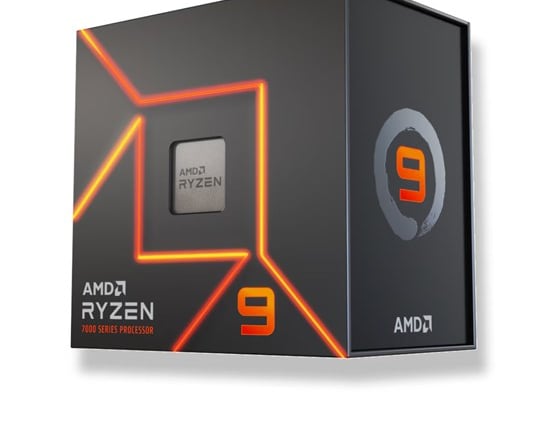
https://www.youtube.com/watch?v=2LSGfSU1G5g
In this video, Kristian Toić technician from TOTALPC Rijeka demonstrates the professional process of upgrading a gaming computer with a high-end AMD Ryzen 9 7900X processor and a B650 motherboard. The expert emphasizes the importance of pre-testing core components like the CPU, RAM, and DDR5 platform outside of the chassis using a Linux-based "Pistolero" drive to ensure functionality before final assembly. Throughout the guide, he manages complex tasks such as swapping cooling systems, installing new PWM fans, and organizing a "forest" of cables within the existing case. The walkthrough highlights technical details, including the integrated graphics capabilities of the Ryzen chip and the shift to the AM5 socket where pins are located on the motherboard. By the conclusion, the machine is fully cleaned and integrated with the owner's original RTX graphics card and storage drives, resulting in a successful, high-performance build.
Core Platform
Processor (CPU): A high-end AMD Ryzen 9 processor is the heart of the build. The sources specifically highlight the Ryzen 9 7900X, which features 12 cores, 24 threads, and a boost clock of up to 5.6 GHz.
Motherboard: A compatible motherboard is required, such as one featuring the B850 chipset (which is AM5 socket ready). The sources emphasize that the motherboard, processor, and RAM are the "three basic components" needed to initially verify the system is working.
Memory (RAM): Modern Ryzen 9 builds utilize the DDR5 platform. A typical configuration mentioned is 32 GB of DDR5 RAM (2 x 16 GB modules).
Cooling and Airflow
CPU Cooler: A robust cooling solution is necessary to handle the heat of a Ryzen 9. The sources mention the Cougar Forza 85, noting it must be compatible with the AM5 socket. Proper installation is critical; the cooler must be "like a stone" (firmly attached) to ensure there is no air gap between the processor and the heatsink, which would cause overheating.
Case Fans: To maintain airflow within the case, additional PWM fans (such as three front-mounted fans) are recommended.
Graphics and Storage
Graphics Card (GPU): While some Ryzen 9 processors (like the 7900X) include integrated Radeon graphics that allow the system to run without a dedicated card, a high-performance build typically includes an external GPU, such as an NVIDIA RTX series card.
Storage: A combination of fast and high-capacity storage is used, specifically NVMe SSDs for speed and HDDs for additional data storage.
Power and Infrastructure
Power Supply (PSU): A reliable power supply is required to drive the components. The source mentions a user utilizing a 550W PSU, though power requirements can vary based on the specific GPU used.
Case: A standard PC case is needed to house the components and manage the "forest of cables" resulting from the various fans and controllers.
Connectivity: Modern motherboards often come with integrated WiFi (WiFi 6 or 7), which includes external antennas that must be attached to the rear I/O.
When assembling these components, it is recommended to test the motherboard, CPU, and RAM together on a "service table" first to ensure they post and display a picture before installing everything into the case.
Why do the MBO, CPU, RAM need testing first?
Testing the motherboard, CPU, and RAM together on a "test bench" or service table before full assembly is considered a critical step for several practical reasons:
Verifying Functional Components: These are the three basic components required to get a picture on the screen. Testing them first ensures that the new parts actually "turn on" and are not defective out of the box.
Avoiding "Double Work": The sources note that it is common for users to buy all-new parts, install everything into a case, and then find the computer doesn't work. Testing first prevents the frustration of having to dismantle a completed build to identify a faulty part.
Protecting Existing Systems: If you are upgrading an existing machine, testing the new core components separately allows you to keep the owner's current working computer intact until you are certain the upgrade parts are functional. Only after the "three basic components" are confirmed to work should you begin dismantling the old PC.
Ease of Troubleshooting: Modern motherboards perform an "initial check" (signaled by colored lights like red, yellow, green, and white) to indicate the status of the boot process. It is much easier to see these indicators and access components like the RAM or CMOS battery when they are not tucked away inside a case behind a "forest of cables".
Initial Software/BIOS Checks: This phase allows the builder to verify the BIOS version, check settings like Secure Boot, and even run a "preview" using a live OS (like Linux) to ensure the integrated graphics, sound, and WiFi are working correctly before the final installation.
Once these components are confirmed to be working—or "working like a rifle" as described in the sources—you can then proceed to the "mechanical" part of the build, such as mounting the permanent cooler and installing the assembly into the case.
What are the : RED, YELLOW, GREEN and WHITE BIOS lights?
The red, yellow, and white lights are part of the motherboard's initial check (or POST process) that occurs when the system is powered on.
According to the sources, here is how they function during a typical boot sequence for a Ryzen 9 build:
Initial Check Sequence: When the motherboard starts up, it cycles through a series of colored lights: red, yellow, green, and white.
Indication of Success: The sources explain that seeing the sequence reach green and then white signifies that the check is complete and the system is successfully booting.
Information outside of the sources: While the sources describe this as a standard "initial check" to verify the system is working, they do not explicitly define what each individual color represents if the sequence stops. Generally, on modern motherboards, these "EZ Debug LEDs" are used for troubleshooting: red usually indicates a CPU issue, yellow/orange indicates a RAM (DRAM) issue, and white indicates a graphics (VGA) issue. However, in the context of the provided sources, these lights are simply shown as the motherboard's way of confirming its components are ready before it displays a picture.
What does it mean when the lights turn green then white?
When the motherboard lights turn green and then white, it signifies that the system has successfully completed its "initial check" and is now booting.
According to the sources, this is the final stage of a specific light sequence—red, yellow, green, and then white—which the motherboard performs to verify that the core components are functioning correctly. Once the sequence reaches the white light, it indicates the system is ready to display an image and proceed to the operating system.
The sources highlight that reaching this stage confirms the three basic components (motherboard, processor, and RAM) are working "like a mine" (working perfectly) before the rest of the build is assembled into the case.
What does it mean for the cooler to be like a stone?
For the cooler to be "like a stone" means that it must be firmly and securely attached to the motherboard and processor.
According to the sources, this stability is critical for the following reasons:
Preventing Air Gaps: If the cooler is not solid and immovable (like a stone), there will be an air gap between the processor and the heatsink.
Preventing Overheating: Because air is a poor conductor of heat, any gap between these components will cause the high-performance Ryzen 9 machine to overheat.
Verification: The builder suggests testing this by hand; when you grasp the installed cooler, it should feel completely rigid and stable.
In the specific build mentioned, the Cougar Forza 85 cooler was used, and the builder emphasized that despite some installation difficulties with the screws, ensuring it is mounted this securely is vital for the system to function correctly.
What are the specific steps for the initial check sequence?
The specific steps for the initial check sequence are designed to verify that the core components are functional before they are permanently installed in the computer case. Based on the sources, the steps are as follows:
Component Assembly on a Test Bench: Place the motherboard on a non-conductive surface, such as its own cardboard box. Install the Ryzen 9 processor and the DDR5 RAM. At this stage, use a temporary "service" cooler and a separate power supply to keep the owner's existing working PC intact.
Powering On and LED Monitoring: Turn on the system and observe the motherboard's diagnostic LEDs. The board performs an "inicijalni ček" (initial check) by cycling through a specific color sequence: red, yellow, green, and finally white.
Reaching the Boot State: Once the sequence reaches the white light, it indicates that the system is successfully booting and ready to display an image.
BIOS Configuration: Access the BIOS to check the system status. A key step mentioned is disabling Secure Boot (which may be off by default) to allow the system to boot into external testing environments.
Video Output Verification: Connect a monitor to the motherboard's HDMI port. Because the Ryzen 9 7900X includes integrated Radeon graphics, it should display a picture even without an external graphics card installed.
Live OS "Preview": Boot into a live operating system, such as Linux (Ubuntu or Mint) from a USB drive. This allows you to verify that the integrated graphics, sound, and WiFi (WiFi 6 or 7) are all working correctly without needing to install an operating system onto a hard drive.
Once these steps are completed and the components are confirmed to be working "like a mine" (perfectly), the builder proceeds to the "mechanical" phase of the build, which involves installing the permanent cooler and mounting the parts inside the case.
What settings should be changed in the BIOS?
Based on the sources, the primary setting you should change in the BIOS during the initial setup is Secure Boot.
According to the builder, he specifically went into the BIOS to turn off Secure Boot. This was done to allow the system to boot from a "pistolero"—a USB drive containing a live Linux environment (like Ubuntu or Mint)—which allows for a "preview" to test the hardware without having any disks or an operating system installed yet.
While in the BIOS, you should also perform the following checks to ensure the hardware is correctly recognized:
Verify the CPU: Ensure the BIOS correctly identifies the processor (e.g., the Ryzen 9 7900X with its 12 cores and 24 threads).
Verify the RAM: Confirm that the full amount of memory is detected (e.g., 32 GB of DDR5 RAM).
Check for BIOS Updates: The builder mentions that while he didn't expect to need a BIOS flash for this 2026 build, it is something he is prepared to do if the motherboard needs to be compatible with a specific processor generation.
Once these settings are confirmed and the "initial check" lights (red, yellow, green, and white) have finished cycling, the system is considered ready for the rest of the assembly.
What is the benefit of using a Linux 'pistolero' USB?
In the context of building a high-performance system like a Ryzen 9, a Linux "pistolero" refers to a USB drive containing a live Linux environment (such as Ubuntu or Mint) used for initial hardware verification.
The primary benefits of using this tool include:
Testing Without Storage: The "pistolero" allows the builder to run and test the computer even if no hard drives or SSDs are installed yet.
Instant Driver Compatibility: Modern Linux kernels often recognize hardware immediately. This allows the builder to verify that the motherboard, processor, and integrated graphics are working "instantly" without the need to manually install any drivers.
Comprehensive Hardware Preview: It provides a "preview" mode to confirm that essential components are functional before the final assembly. Specifically, it can be used to test:
WiFi connectivity (such as WiFi 6 or 7).
HDMI output, ensuring both picture and sound are transmitted correctly.
Internet stability by performing tasks like browsing YouTube.
Risk Mitigation: By confirming that the "three basic components" (motherboard, CPU, and RAM) are working "like a mine" (perfectly) via the USB, the builder can safely proceed to dismantle the owner's old working PC without fear of being left with a non-functional upgrade.
Non-Permanent Testing: Because it is a live environment, nothing is installed on the hardware. Once the "pistolero" is removed and the PC is turned off, no traces are left behind.
To use a "pistolero" USB, the builder notes that you must typically enter the BIOS and turn off "Secure Boot" to allow the system to boot from the external drive.
What is the benefit of testing the core components on a cardboard box?
Testing the core components—the motherboard, CPU, and RAM—on a cardboard box (typically the one the motherboard came in) serves as a temporary "service table" or test bench,. This practice offers several critical benefits for a high-end build:
Surface Protection: Using the cardboard prevents the motherboard from sitting directly on a table surface, which could potentially cause damage or electrical issues.
Verification Before Assembly: It allows you to confirm that the "three basic components" are functional and that the system can produce a picture before you commit to the "mechanical" part of the build,. The sources note that it is common for users to install everything into a case only to find the computer doesn't work, leading to significant wasted effort.
Preserving the Existing System: By testing the new parts separately on a box using a "service cooler" and a separate power supply, you can keep the owner's current working computer intact,. You only begin dismantling the old machine once you are certain the new components work "like a mine" (perfectly),.
Easier Troubleshooting and Access: When components are on a box rather than tucked inside a case, it is much easier to:
Monitor the initial check lights (red, yellow, green, and white) to verify the boot sequence.
Connect the WiFi antennas and check the rear I/O,.
Access the BIOS to disable Secure Boot or check hardware recognition.
Boot into a Linux "pistolero" USB to perform a "preview" of the integrated graphics, sound, and network connectivity,.
Once you have confirmed that the system is "ready like a rifle" on the cardboard box, you can then proceed to the permanent installation, which involves mounting the main cooler and managing the "forest of cables" inside the case,.
What cooler is used for the permanent build?
The cooler used for the permanent Ryzen 9 build is the Cougar Forza 85 (referred to in the sources as the "Ford 85" or "Forda A85"),,.
Key details regarding this cooler include:
Compatibility: It is compatible with the AM5 socket required for the Ryzen 9 7900X, as well as Intel's LGA 1700 socket.
Installation Quality: The builder emphasizes that once installed, the cooler must be "like a stone" (firmly and rigidly attached) to ensure there is no air gap between the processor and the heatsink, which would otherwise cause the system to overheat,.
Design and Materials: It is described as a high-quality "top" cooler made of aluminum.
Installation Challenge: The builder noted a specific design drawback: one of the mounting holes is so deep that standard screwdrivers may be too short or too thick to reach the screw. This required him to initially tighten the screw by hand and then finish it with pliers.
The permanent cooler is installed after the initial "preview" test is completed with a temporary service cooler,. Once the Cougar Forza 85 is secured and its PWM fan is attached, the entire assembly is then mounted into the PC case,.
What type of HDMI cable is needed for audio and video?
The sources do not specify a particular technical "type" or version of HDMI cable (such as HDMI 2.0 or 2.1); however, they confirm that a standard HDMI connection is used to transmit both video and audio signals ("slika i zvuk") simultaneously.
Key details regarding the HDMI setup from the sources include:
Integrated Graphics Support: During the initial testing phase, because the Ryzen 9 processor includes integrated Radeon graphics, you can connect the HDMI cable directly to the motherboard's HDMI port to get a picture and sound.
Audio/Video Transmission: When the system is booted into a live environment (like the Linux "pistolero"), the HDMI connection immediately handles both the display and the sound output, which the builder verified by playing a YouTube video.
Final Build Configuration: Once a dedicated graphics card (GPU) is installed, the HDMI cable must be moved from the motherboard port and plugged directly into the graphics card. The sources note that the motherboard's HDMI port will no longer function once an external card is present.
Information outside of the sources: While the sources simply refer to using an "HDMI" cable, for a high-performance Ryzen 9 build in 2026, you would typically use an HDMI 2.1 (Ultra High Speed) cable if you are connecting to a high-resolution (4K) or high-refresh-rate monitor to take full advantage of the hardware's capabilities. You may want to independently verify the specific cable version required for your monitor's specifications.
What type of HDMI cable is needed for audio and video?
The sources do not specify a particular technical "type" or version of HDMI cable (such as HDMI 2.0 or 2.1); however, they confirm that a standard HDMI connection is used to transmit both video and audio signals ("slika i zvuk") simultaneously.
Key details regarding the HDMI setup from the sources include:
Integrated Graphics Support: During the initial testing phase, because the Ryzen 9 processor includes integrated Radeon graphics, you can connect the HDMI cable directly to the motherboard's HDMI port to get a picture and sound.
Audio/Video Transmission: When the system is booted into a live environment (like the Linux "pistolero"), the HDMI connection immediately handles both the display and the sound output, which the builder verified by playing a YouTube video.
Final Build Configuration: Once a dedicated graphics card (GPU) is installed, the HDMI cable must be moved from the motherboard port and plugged directly into the graphics card. The sources note that the motherboard's HDMI port will no longer function once an external card is present.
Information outside of the sources: While the sources simply refer to using an "HDMI" cable, for a high-performance Ryzen 9 build in 2026, you would typically use an HDMI 2.1 (Ultra High Speed) cable if you are connecting to a high-resolution (4K) or high-refresh-rate monitor to take full advantage of the hardware's capabilities. You may want to independently verify the specific cable version required for your monitor's specifications.
What external GPU was used in this Ryzen 9 build?
According to the sources, the external GPU used in this build is an NVIDIA RTX series card,.
The specific model (such as an RTX 4070 or 3080) is not identified because it was a component salvaged from the owner's previous working computer rather than a new part purchased for the upgrade,. The builder explicitly mentions during the assembly that he is unsure of the exact model inside, referring to it simply as "his graphics card, RTX something".
Once installed, the system utilizes both the dedicated RTX graphics and the integrated Radeon graphics found within the Ryzen 9 processor. The builder also notes that once this external GPU is installed, the monitor must be connected directly to the graphics card's ports, as the motherboard's HDMI port will no longer function.
What tool was needed to tighten the Cougar Forza 85?
To tighten the Cougar Forza 85 cooler (referred to in the sources as "Ford 85" or "Qar cool"), the builder had to use pliers (klještima) to finish the installation.
The sources explain that while one side of the cooler was easy to tighten, the other side featured a hole so deep that a standard screwdriver (šavfciger) either could not reach the bottom or was too thick to fit inside. As a result, the builder had to:
Hand-tighten the screw as much as possible.
Use pliers to finish tightening it to the end.
The builder emphasized that regardless of the tool used, the final result must be "like a stone" (kamen) to ensure there is no air gap between the processor and the heatsink, which would cause the system to overheat.
What type of storage was reused in the build?
According to the sources, the build reused the following storage components from the owner's existing system:
NVMe SSD: One NVMe drive was kept and integrated into the new build.
HDDs: Two Hard Disk Drives (HDDs) were also retained from the previous machine.
The builder noted that the existing SATA cables were replaced with new ones included with the motherboard to connect these drives. These storage devices were reused alongside the new core components—the Ryzen 9 7900X processor, the B850 motherboard, and 32 GB of DDR5 RAM—to complete the high-performance system.
What are the common mistakes when building a new PC?
Based on the sources, building a new PC—especially a high-end system like a Ryzen 9—involves several common pitfalls. Avoiding these mistakes ensures the hardware functions correctly and saves significant time during the assembly process.
### 1. Assembling Everything in the Case Before Testing
One of the most frequent mistakes is buying all new components, immediately installing them into the case, and only then discovering the computer will not turn on. The sources note this has happened "1,000 times". To avoid this, you should first test the three basic components—the motherboard, processor, and RAM—on a "service table" (such as a cardboard box) to ensure you can get a picture on the screen before proceeding with the full build,,.
### 2. Dismantling a Working PC Too Early
When upgrading an existing machine, a common error is dismantling the owner's current working computer before verifying that the new upgrade parts actually work. By testing the new core components separately using a "service cooler" and a different power supply, you can keep the original PC intact until you are certain the new parts are functional,.
### 3. Improperly Mounting the CPU Cooler
If the CPU cooler is not mounted securely, it can lead to immediate performance issues. The sources emphasize that the cooler must be "like a stone" (rigid and immovable),. If there is even a small air gap between the processor and the heatsink, the machine will quickly overheat.
### 4. Plugging the Monitor into the Wrong Port
For processors that include integrated graphics (like the Ryzen 9 7900X), the motherboard's HDMI port will function during initial testing,. However, a common mistake occurs once a dedicated graphics card (GPU) is installed: users often forget that the motherboard's HDMI port is then disabled. Once an external card is present, the monitor must be connected directly to the graphics card for the system to display a picture.
### 5. Neglecting BIOS Settings for Testing
When using external tools to verify hardware—such as a Linux "pistolero" USB—builders often fail to realize that Secure Boot may be enabled by default. If this setting is not turned off in the BIOS, the system may refuse to boot from the testing drive, preventing a proper hardware "preview",.
### 6. Poor Cable Management and Routing
When moving components to a new motherboard, builders often find a "forest of cables" that no longer match the previous configuration,. A common mistake is trying to force existing cable runs to work rather than pulling all the cabling out and re-routing it to match the specific layout and connectors of the new motherboard.
### 7. Mishandling Socket Pins
With the shift to the AM5 platform, the pins are now located on the motherboard rather than the CPU. The sources highlight the importance of inspecting these pins with a microscope or magnifying glass before installation, as they are fragile and essential for the system to "fire up like a mine".
How do you check for bent socket pins on AM5?
To check for bent socket pins on an AM5 motherboard, you should use a microscope and a magnifying glass to carefully inspect the socket.
This inspection is particularly important for the AM5 platform because the pins are now located on the motherboard rather than on the processor itself. The sources describe the Ryzen 9 CPU as "bald" because it no longer has pins. Verifying that these motherboard pins are in good condition is a key step in the "initial check" to ensure the system will function perfectly—or "fire up like a mine"—once assembled.
Based on the sources, two different power supplies were used at different stages of the build:
Permanent Power Supply: The owner's existing 550W power supply was reused for the final build. The builder noted that while they were upgrading the motherboard, processor, and RAM, they decided to keep and reinstall the original power supply into the case.
Service Power Supply: During the initial check (testing the motherboard, CPU, and RAM on a cardboard box), the builder used their own service power supply. This was done specifically to keep the owner's existing computer intact and functional until the new components were confirmed to be working perfectly.
Once the "three basic components" were verified using the service unit, the builder proceeded to dismantle the old machine and integrate the owner's 550W PSU into the new Ryzen 9 system.
What are the WiFi capabilities of the B850 motherboard?
The B850 motherboard used in this Ryzen 9 build features high-speed integrated wireless connectivity, specifically supporting WiFi 6 or WiFi 7.
Key details regarding its WiFi capabilities include:
Antennas: The motherboard includes external antennas (which the builder refers to as "ears") that must be attached to the rear I/O to enable wireless signals.
Driver Compatibility: During the "preview" test using a Linux "pistolero" USB, the system recognized the WiFi 7 hardware immediately without the need for manual driver installation.
Connectivity: The builder successfully demonstrated the motherboard's ability to scan for and connect to WiFi networks instantly during the initial hardware verification phase.
These capabilities allow the high-performance system to handle demanding tasks, such as streaming high-definition YouTube videos, wirelessly right out of the box.
How do you inspect the AM5 socket pins?
To inspect the AM5 socket pins, you should use a microscope and a magnifying glass.
This inspection is critical because, unlike older AMD platforms, the pins on the AM5 platform are located on the motherboard rather than the CPU. The sources describe the Ryzen 9 processor itself as "bald" or having no pins, making the motherboard's socket the primary area that needs to be checked for any damage or irregularities before the system is fired up.
What are the specs of the Ryzen 9 7900X?
Based on the sources, the Ryzen 9 7900X features the following specifications:
Core and Thread Count: It is a high-performance processor equipped with 12 cores and 24 threads.
Clock Speeds: The CPU has a maximum boost clock speed of 5.6 GHz. One source also notes it reaching 5.7 GHz during the system's "initial check".
Integrated Graphics: The processor includes integrated Radeon graphics, which allows it to output video (via the motherboard's HDMI port) without the immediate need for a dedicated graphics card.
Platform and Memory Support: It is built for the AM5 socket and utilizes the DDR5 platform. It is compatible with modern chipsets such as the B850.
Physical Design: Unlike previous AMD generations, this processor is "bald," meaning it has no pins on the CPU itself. Instead, the pins are located on the motherboard's AM5 socket.
What are the specs for the Cougar Forza 85?
Based on the sources, the specific technical specifications provided for the Cougar Forza 85 (referred to in the transcripts as the "Ford 85" or "Forda A85") include:
Socket Compatibility: It is compatible with the AMD AM5 socket as well as the Intel LGA 1700 socket.
Material and Build Quality: The cooler is described as a "top" quality component made of aluminum.
Included Components: The cooler comes with its own PWM fan, which is installed after the heatsink is mounted.
Installation Design: The cooler features a specific mounting design where one of the screws is located inside a hole so deep that a standard screwdriver may not reach it, requiring the use of pliers to finish tightening it.
Thermal Performance Requirement: For optimal performance, the cooler must be mounted so that it is "like a stone" (completely rigid). This ensures there is no air gap between the processor and the heatsink, which is critical to preventing the Ryzen 9 from overheating.
The sources do not provide more granular specifications such as TDP rating, exact dimensions, or fan RPM ranges beyond describing it as a high-end "big" cooler suitable for a Ryzen 9 build.
How do you install the Cougar Forza 85 fan?
According to the sources, the installation of the Cougar Forza 85 fan is the final step in the cooler assembly process.
Here is the sequence for installing it:
Secure the Heatsink First: Before the fan is attached, the main aluminum heatsink must be mounted to the motherboard. The builder emphasizes that the heatsink must be "like a stone" (completely rigid and immovable) to ensure there is no air gap between the processor and the cooler, which would cause the Ryzen 9 to overheat.
Address Mounting Challenges: During the heatsink installation, you may need to use pliers to tighten one of the screws because the mounting hole is too deep for standard screwdrivers to reach.
Attach the Fan Last: Once the heatsink is firmly secured, the PWM fan is then installed onto the cooler assembly. The builder specifically notes that the fan "comes at the end" of the installation process.
Once the fan is attached to the heatsink, the entire "complex" (motherboard, CPU, and cooler) is ready to be placed into the PC case.
What are the specs of the B850 motherboard?
Based on the sources, the B850 motherboard used in this Ryzen 9 build has the following specifications and features:
Chipset and Manufacturer: It uses the B850 chipset and is manufactured by AsRock (referred to as "Astro" in the transcript).
Socket and CPU Compatibility: It features the AM5 socket, where the pins are located on the motherboard rather than the CPU. It is described as being "Ryzen 9 200 ready" (likely referring to newer generations available in 2026) and successfully runs the Ryzen 9 7900X.
Memory Support: The board is built on the DDR5 platform.
Wireless Connectivity: It includes integrated WiFi 6 or WiFi 7 capabilities and comes with external WiFi antennas (referred to as "ears") that attach to the rear I/O.
Video Output: It has a built-in HDMI port that supports the integrated Radeon graphics of the Ryzen 9 processor.
Diagnostic Features: The board includes an "initial check" LED system that cycles through red, yellow, green, and white lights to verify the status of core components during boot.
Storage and Accessories: The motherboard package includes new SATA cables for connecting traditional drives.
BIOS Features: It comes with Secure Boot enabled by default, which the builder manually disabled to allow booting from a testing USB.
Information outside of the sources: While the transcript mentions the motherboard is "Ryzen 9 200 ready," this likely refers to the Ryzen 9000 series or a similar naming convention expected in the 2026 timeframe described in the video. Additionally, "Astro" is almost certainly a transcription error for AsRock, a well-known motherboard manufacturer. You may want to independently verify the specific AsRock B850 model for exact port counts and VRM specifications.
What are the specs for the DDR5 RAM used?
Based on the sources, the specific technical specifications for the DDR5 RAM used in this build are as follows:
Total Capacity: The system is equipped with 32 GB of RAM.
Configuration: This capacity is achieved using a two-stick kit (2x).
Platform: It is specifically DDR5 memory, which is compatible with the motherboard's B850 chipset and the AM5 platform.
The builder verified these specs during the "initial check" on the test bench, confirming that the system correctly recognized the full 32 GB of DDR5 RAM before proceeding with the rest of the assembly. While the sources mention the processor's clock speeds (5.6–5.7 GHz), they do not specify the exact frequency or brand of the RAM modules themselves.
What are the advantages of the B850 chipset?
Based on the sources, the B850 chipset offers several advantages for high-performance builds, particularly regarding future-proofing, connectivity, and ease of assembly:
Future-Proofing and Compatibility: The chipset is described as "Ryzen 9200 ready," indicating compatibility with newer generations of processors expected around 2026. It utilizes the AM5 socket and the DDR5 platform, which are current standards for high-performance computing.
Advanced Wireless Connectivity: A major advantage is the integrated support for WiFi 6 or WiFi 7. The motherboard comes with external antennas ("ears") that provide high-speed wireless access, which is recognized immediately by modern operating system kernels without the need for manual driver installation.
Integrated Diagnostic Tools: The chipset supports a helpful "initial check" sequence. During boot, the motherboard cycles through colored LEDs (red, yellow, green, and white) to notify the builder of the system's status, making it easier to verify that components are working correctly before final assembly.
Integrated Graphics Support: It features a motherboard HDMI port that works seamlessly with the integrated Radeon graphics found in processors like the Ryzen 9 7900X. This allows the system to produce a picture and sound for testing purposes even if a dedicated graphics card is not yet installed.
Modern Socket Design: Because it uses the AM5 platform, the fragile pins are located on the motherboard's socket rather than the CPU, which can be easier to inspect with a magnifying glass to ensure a perfect connection.
Information outside of the sources: The builder in the video refers to the manufacturer as "Astro," which is likely a transcription error for AsRock, a well-known motherboard manufacturer. Additionally, while the source mentions "Ryzen 9200 ready," this likely refers to the Ryzen 9000 series or a future-proofed designation for that era. You may want to independently verify the specific PCIe lane configurations (such as Gen 5 support) for the B850 chipset, as these technical details are not explicitly detailed in the provided transcript.
What cable management issues arise when swapping motherboards?
Swapping motherboards often presents several cable management challenges, primarily because the physical layout of connectors rarely matches between different models. Based on the sources, the following issues typically arise:
Mismatched Connector Locations: The most significant issue is that the cables routed for a previous motherboard—such as power connectors, front panel headers, and fan ports—will likely not align with the headers on the new board.
The "Forest of Cables": PC cases often contain a complex "forest of cables" (šuma kablova) behind the motherboard tray. This mess is frequently caused by a combination of:
Individual power and data cables for multiple fans.
Cables for dedicated fan controllers.
Power supply cables for various internal components.
The Need for Complete Re-routing: Because the old cable runs are rarely compatible with the new layout, you cannot simply plug the existing cables into the new board. Instead, you must pull all the cabling out and route it "anew" to reach the specific positions of the connectors on the new motherboard.
Integration of New and Reused Parts: When upgrading, you may be adding new fans or coolers while keeping old components like the power supply, NVMe drive, or HDDs. This requires managing a mix of old cables and new ones, such as the new SATA cables provided with the new motherboard, to ensure everything is connected properly.
Physical Obstructions: Some high-end components, like large CPU coolers, can make accessing cable headers difficult. For instance, the builder notes that a large cooler must be mounted firmly ("like a stone") before the motherboard is even fully secured in the case, which can complicate the process of reaching nearby fan or power headers.
To resolve these issues, the sources suggest a "mechanical" phase where you carefully strip the old cabling, clean the case of dust, and then meticulously re-route every wire to fit the new configuration.